Windows - Reset computer yourself - Company Portal:
About:
This guide explains how to reset a company-managed computer using the Company Portal app. This method is typically used when a device is not working correctly or needs to be returned to a clean, default state.
Before you start:
-
Back up any important files stored locally on the computer.
-
Ensure OneDrive is running and fully synced if you use it for file storage.
-
Make sure the computer is connected to power and the internet.
-
Be aware that all local data will be permanently removed.
How to is found here: Checklist - prepare for new machine
How to:
- The reset process will start automatically.
- This may take some time; do not shut down or interrupt the computer.
1, Open the Company Portal app (In Norwegian: FirmaPortal) on your computer.

2, Sign in using your organisational account (for example, your work email and password).
3, Go to the device management section, usually labelled Devices or Settings. Select your computer from the list of devices.
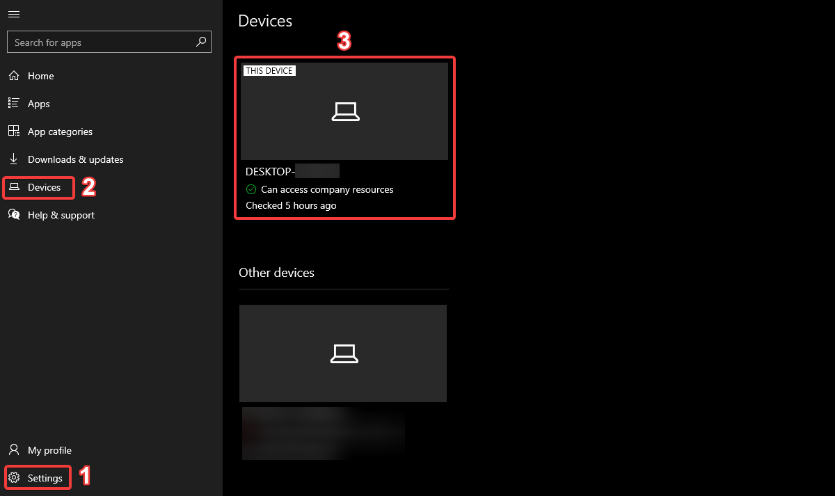
5, Choose Reset device (or Factory reset, depending on the wording).
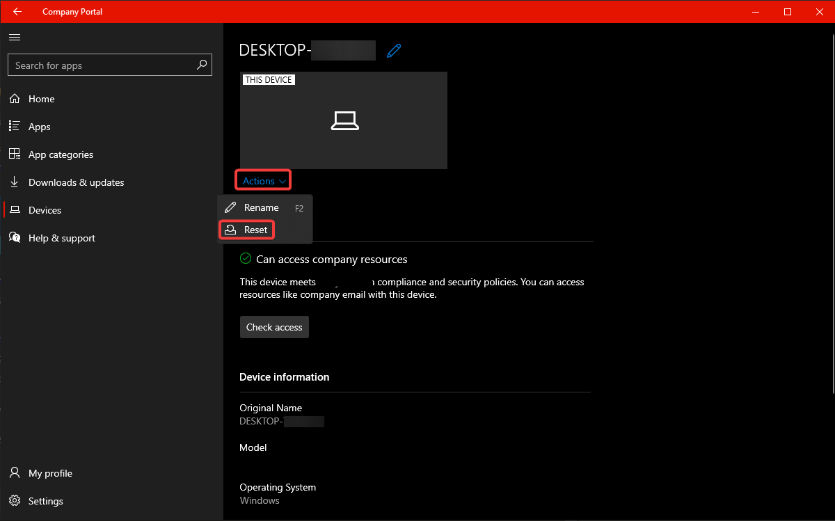
Read the warning message carefully and confirm that you want to proceed. You may be asked to authenticate again or wait for approval, depending on company policy.
- The computer will restart and display the initial setup screen.
- Follow the on-screen steps to set up the device again.
- Sign in with your organisational account to re-enrol the device and reinstall required company applications.
And you are done 😄